Showing posts with label software. Show all posts

Sunday, February 16, 2025

How Google Makes Billions Off Of reCAPTCHA


Article: reCAPTCHA: 819 million hours of wasted human time and billions of dollars in Google profits - Boing Boing

It would seem that reCAPTCHA, where you have to check a box to get into a site is a good security tool. But, in actuality, it can easily be defeated by bots. And, it's main objective now is to be a Google tracking tool, monitoring your web activity.

Click the Article Link to read more about what reCAPTCHA is really about.

Come back here for all the latest Artificial Intelligence News. Thank you for reading!

AI Brief for the latest on Artificial Intelligence! • Twitter - aibrief

millerfilm is ON! • Twitter • Facebook

Tuesday, October 24, 2023

New Software Helps Artists Fight Artificial Intelligence


Article: Artists Can Fight Back Against AI by Killing Art Generators From the Inside - Gizmodo

Many artists have been upset that their work posted on the Internet has been used to train Artificial Intelligence Art programs. Since that revelation, software engineers have been trying to figure out a way to stop programs like Stable Diffusion and DALL-E from scraping their photos to train their software platforms. Now, new software has been devised to maybe not block platforms from using the photos, but in getting the platforms to misundertand what they are scanning.

Click the Article Link to read more about these software options for artists.

Come back here for all the latest Artificial Intelligence News. Thank you for reading!

AI Brief for the latest on Artificial Intelligence! • Twitter - aibrief

millerfilm is ON! • Twitter • Facebook

Thursday, December 1, 2022

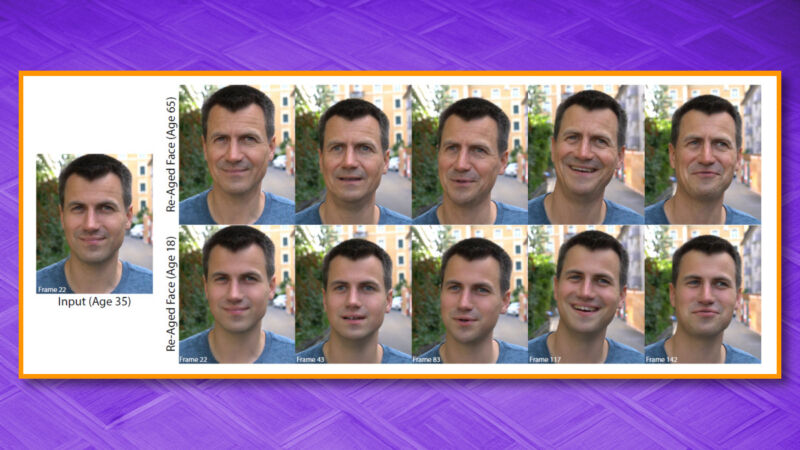
Disney De-Ages Actors with New Software


Article: Disney’s new neural network can change an actor’s age with ease - Ars Technica

Disney has developed a neural network to de-age actors with an automated process. The new AI technique, called Face Re-aging Network (FRAN), saves a lot of time. Previously, full scans of actors had to be made, and visual effects artists had to manually complete the process. Now, the new software can do it with far less effort.

Read the article above to learn more!

Come back here for all the latest on Artificial Intelligence News. Thank you for reading!

millerfilm is ON! • Twitter • Facebook
Monday, November 28, 2022

Amazon Using Artificial Intelligence to Replace Workers


Article: A leaked Amazon memo may help explain why the tech giant is pushing out so many recruiters - Vox

A leaked memo has shown that Amazon is using artificial intelligence to screen applicants. So, it won't be needing job recruiters nearly as much.

Read the article above to learn more!

Come back here for all the latest on Artificial Intelligence News. Thank you for reading!

millerfilm is ON! • Twitter • Facebook

Thursday, May 25, 2017

Raspberry Pi Audio


You have a Pi. You want to get music and sounds out of it. This is how you do it!

The Raspberry Pi has evolved over its numerous models. I am currently using a Raspberry Pi 2 Model B, but these instructions will follow for the current Raspberry Pi 3 Model B.

Hardware: First, you have two options when it comes to how you hook up your 1/8" (3.5mm) male cable-equipped speaker. One is the 1/8" (3.5mm) jack that has been on the Pi since Day 1. Second is to plug a USB Sound Card into a USB Port.


1/8" Audio Jack


USB Ports


USB Sound Card

By default, the sound will come out of that 1/8" jack. If you have a USB Sound Card, you will need to configure your Pi to use USB as your audio output device. This is how you do it:

1.) This instruction is for Raspbian with Jessie. For other Operating System variants, go to this tutorial: Setting Up USB Sound Card. From a Terminal Window, key
sudo nano /etc/asound.conf An empty file window will appear. Cut and paste the following into that file:

pcm.!default {
type hw card 1
}
ctl.!default {
type hw card 1
}


asound.conf file in Terminal Window

Save the file by keying CTL + x. You will be asked if you want to save the file. Type y (for yes) and hit ENTER.

Software: Next, you want an audio player. I am going to highlight two options. One you might know about, one you probably won't unless you're used to working on Linux!

First, the one you probably know: VLC Player. This is an Open Source app that has three main positives: 1.) It's small in size, 2.) It plays pretty much everything you throw at it, and 3.) It is made for pretty much every Operating System, and every flavor of those Operating Systems.

NOTE: I am using Raspbian Jessie with Pixel, which is the recommended Operating System on RaspberryPi.org (Raspbian Downloads). Also, before installing any new software, you need to run the following:


sudo apt-get update
sudo apt-get dist-upgrade


You might be prompted to include a
-f to repair broken packages. Key the entries as described and see how it goes. Add the -f according to the instructions, if asked to.

Set Up VLC Player:

Open a Terminal Window. Key:
sudo apt-get install vlc and ENTER. The install process will proceed and will complete. Once done, VLC Player will be available under Sound & Video.


VLC Player once installed

Command-Line Audio Player:

For the more adventurous, you actually have a command-line audio player already built into your Raspbian Operating System. It is called Omxplayer. You simply navigate to the place where you have your audio files are stored. Once there, you can play an audio file using the following syntax:


omxplayer song.mp3


omxplayer playing an mp3 file

Key ESC when wanting to quit. Remember, in command line, you need to key things in correctly. That means, getting capitals right, etc. You will find that it might be easiest to change file names to something simpler to be able to key them in more easily. Next, here is how to play streams with Omxplayer. Use the following syntax:


omxplayer http://bbcmedia.ic.llnwd.net/stream/bbcmedia_radio3_mf_p


omxplayer playing a BBC Radio 3 stream

This is a fun way to try a basic way of playing audio. But, VLC Player is naturally going to be an easier solution that you are used to using.

So, there you have it! A primer on how to make audio happen on your Pi! Leave any questions or comments in the space below. Thanks!

Reference:

Text Links to BBC Radio: BBC Radio URL's - Suppertime.co.uk

Audio Usage: Playing Audio on the Raspberry Pi - RaspberryPi.org


millerfilm is ON!  Facebook   Twitter   Google+